
If we are running a WordPress website, we must be aware that the comment section gets filled with spam. We need to add captcha on comments to avoid or at least minimise the impact of this problem.
Bots automatically drop fake comments with backlinks. If it happens over time, it can hurt our site’s SEO and performance. The issue can be dealt with by changing the Plugin.
Table of Contents
But more plugins mean more load time, more updates, and more maintenance.
We will guide users in this post to fix this problem through custom code without using the cumbersome Plugin.
We will show you the complete pattern with powerful solutions here. Know how to add CAPTCHA to your WordPress comments using just a few lines of code.
Why Do We Require ‘Add Captcha on Comments’
Spammers use bots to automatically post junk comments. These fake comments usually contain:
- Random praises like “Great post!” with links
- Promotional or malicious URLs
- Repeated text copied from other blogs
A CAPTCHA ensures that only real humans can post and submit comments. It helps us in the following ways.
- Block automated spam bots
- Protect the database from unwanted entries
- Keep the comment section genuine
- Regularly check and improve site performance and SEO
The best part of all these things is that we can do it without using a Plugin.
Step-by-Step: Add Captcha on Comments(No Plugin Required)
We’ll use a short PHP function that adds a small question under your comment box. The user has to answer it correctly to post the comment.
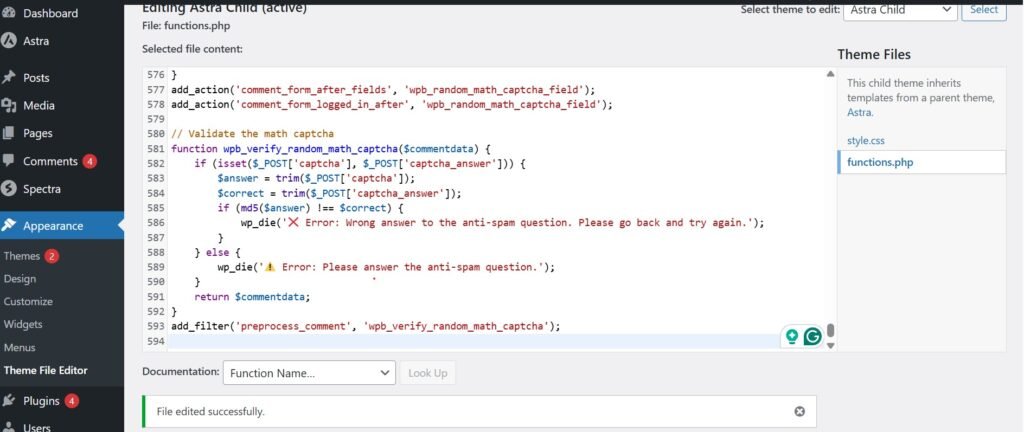
Step 1 – Add This Code to Add Captcha on Comments to Your functions.php File
Go to
Appearance and then to Theme File Editor
Here you can find the file name function.php on the rightside bar.
Open your active theme folder and edit the functions.php file.
Paste this code at the bottom:
// Add random math captcha field to WordPress comment form
function wpb_random_math_captcha_field() {
    // Generate two random numbers between 1 and 9
    $num1 = rand(1, 9);
    $num2 = rand(1, 9);

    // Store the correct answer in a hidden input field (hashed for security)
    $sum = $num1 + $num2;
    echo '<p class="comment-form-captcha">
    <label for="captcha">What is ' . $num1 . ' + ' . $num2 . '? (Anti-spam check)</label>
    <input type="text" name="captcha" id="captcha" required />
    <input type="hidden" name="captcha_answer" value="' . md5($sum) . '" />
    </p>';
}
add_action('comment_form_after_fields', 'wpb_random_math_captcha_field');
add_action('comment_form_logged_in_after', 'wpb_random_math_captcha_field');

// Validate the math captcha
function wpb_verify_random_math_captcha($commentdata) {
    if (isset($_POST['captcha'], $_POST['captcha_answer'])) {
        $answer = trim($_POST['captcha']);
        $correct = trim($_POST['captcha_answer']);
        if (md5($answer) !== $correct) {
            wp_die('❌ Error: Wrong answer to the anti-spam question. Please go back and try again.');
        }
    } else {
        wp_die('⚠️ Error: Please answer the anti-spam question.');
    }
    return $commentdata;
}
add_filter('preprocess_comment', 'wpb_verify_random_math_captcha');
This code adds a question — “What is 5 + 3?” — below your comment box.
If the answer is incorrect, WordPress will stop the comment from being saved.
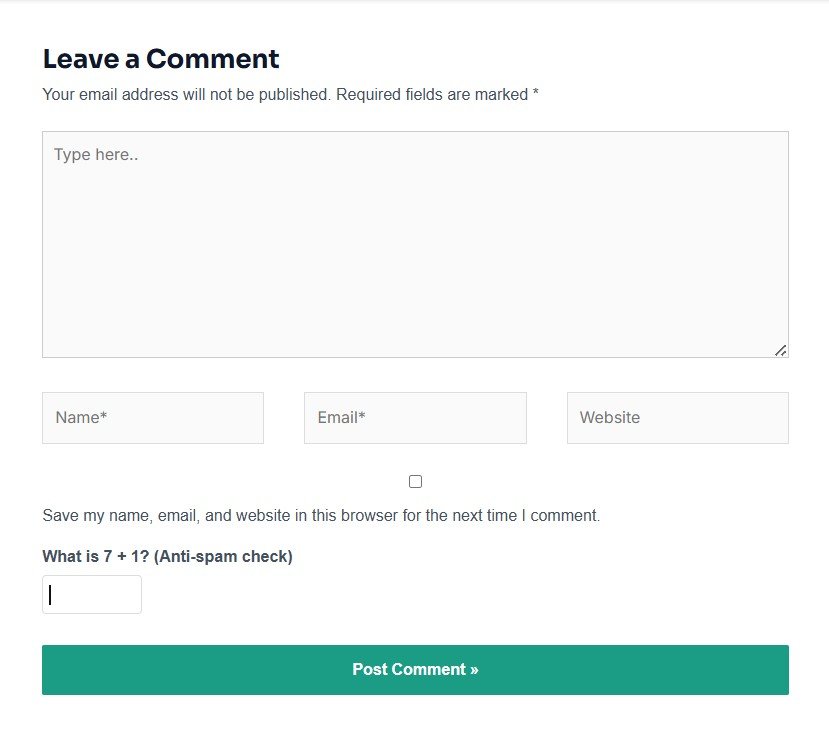
Step 2 – Test It on Site for Add Captcha on Comments
Go to any blog post. Scroll down to the comment form.
You’ll now see a new field asking for “What is 5 + 3?”.
Try submitting a wrong answer and then the correct one. You will instantly see that the validation is working correctly.
Step 3 – Customise Your Captcha Question on Add Captcha on Comments
You can easily change the question and the correct answer.
For example, if you want a text-based question:
<label for="captcha">Type the word "blue" (Anti-spam)</label>
if ( strtolower($answer) != 'blue' ) {
    wp_die('Wrong answer! Please go back and try again.');
}
You can also create random math questions using rand() in PHP for extra protection.
Step 4 – Add Some CSS for Better Styling (Optional)
If you want your captcha box to look clean, go to Appearance, then to Customise and then to Additional CSS and add:
.comment-form-captcha {
  margin-top: 10px;
}
.comment-form-captcha label {
  font-weight: 600;
  display: block;
  margin-bottom: 5px;
}
.comment-form-captcha input {
  width: 150px;
  padding: 6px;
  border-radius: 4px;
  border: 1px solid #ddd;
}
This gives it a neat look consistent with your comment form.
Why This Method Works So Well
- No plugins or scripts required
- Super lightweight and fast
- Works even if JavaScript is disabled
- 100% privacy-friendly (no Google reCAPTCHA tracking)
- Easy to customise anytime
This simple trick stops 90–99% of comment spam. It will give you mental relief and you will never have to worry about updating another anti-spam plugin again.
Quick Recap
| Feature | Method | Plugin Needed | Works on Any Theme |
|---|---|---|---|
| Add CAPTCHA | Custom PHP | ❌ No | ✅ Yes |
| Validate Answer | PHP filter | ❌ No | ✅ Yes |
| Customize Look | CSS | ❌ No | ✅ Yes |
Conclusion
If your WordPress site is getting flooded with spam comments, adding a CAPTCHA on Comments is the rescue. It can be easily fixed without using any extra plugins.
A few lines of PHP in your functions.php file can protect your comment section, keep your site clean, and improve overall user experience.
You built your site. Keep it light, fast, and spam-free.
For more tutorials like this, check out withoutplugin.com, where you learn how to do everything in WordPress, without using plugins.
Please share your comments and queries through the comment section.
Thank You.