
In modern times, the most powerful marketing tool is through Popup email Subscription. Those who work on WordPress know it far better, how effective an email list can be in promotion.
The issue arises with the “Subscribe Popup” because generally, they use heavy, long, and tracking Plugins. Their upgradation often requires purchasing them.
Table of Contents
In this post, we will guide users to make their own popup email subscription form in WordPress using just a few lines of code. They don’t require any plugins.
It’s lightweight, fast, and 100% under our control.
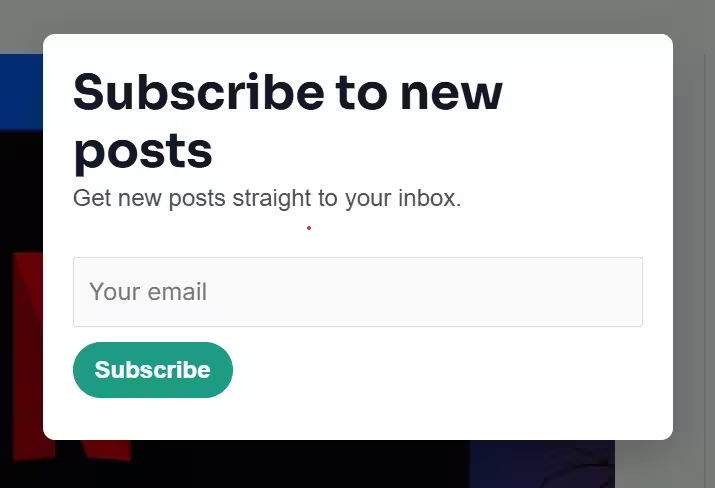
Why Do We Add a Popup Email Subscription?
A popup email form is the best and easiest way to collect readers’ emails. It is used to keep readers in touch with the latest product details, posts, or weekly newsletters.
Key Benefits of a custom popup
- No extra plugin or slow JavaScript library
- Fully customizable design
- Works with your theme and SMTP setup
- Sends new post notifications automatically
If this Popup email has been subscribed to, readers automatically receive it whenever a new post or content is published.
Step 1: Create a Subscriber Table for Popup Email Subscription
The first step is to store subscriber emails in the database.
Add this code to your theme’s functions.php file:
add_action('init', 'wp_subscribers_create_table_and_ajax');
function wp_subscribers_create_table_and_ajax() {
    global $wpdb;
    $table = $wpdb->prefix . 'subscribers';
    $charset_collate = $wpdb->get_charset_collate();

    $sql = "CREATE TABLE IF NOT EXISTS $table (
        id BIGINT(20) UNSIGNED NOT NULL AUTO_INCREMENT,
        email VARCHAR(200) NOT NULL,
        ip VARCHAR(45) DEFAULT NULL,
        created DATETIME DEFAULT CURRENT_TIMESTAMP,
        unsubscribed TINYINT(1) DEFAULT 0,
        unsub_key VARCHAR(64) DEFAULT NULL,
        PRIMARY KEY  (id),
        UNIQUE KEY email_unique (email)
    ) $charset_collate;";

    require_once(ABSPATH . 'wp-admin/includes/upgrade.php');
    dbDelta($sql);
}
This step will automatically create a new table called wp_subscribers. It will store all the email addresses.
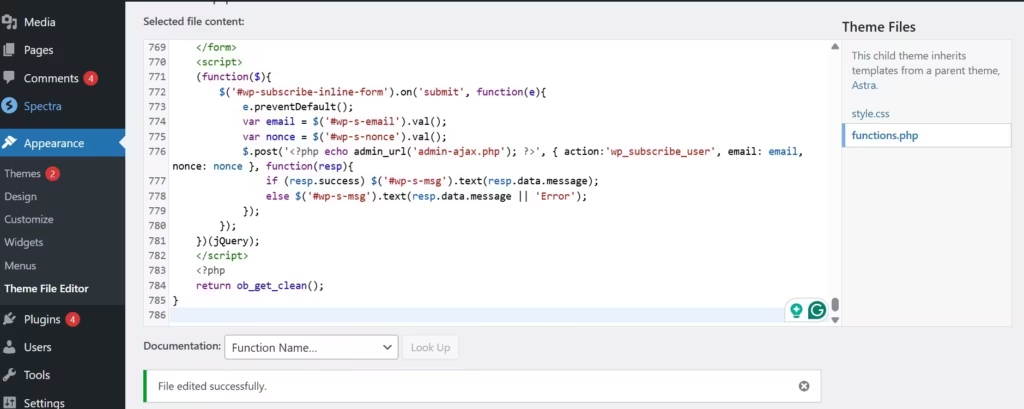
Step 2: Add Popup Functionality for Popup Email Subscription
Next, enqueue your CSS and JavaScript for the popup.
Add this below in the same functions.php file:
add_action('wp_enqueue_scripts', 'wp_subscribers_enqueue_scripts');
function wp_subscribers_enqueue_scripts() {
    wp_enqueue_style('wp-subs-popup-css', get_stylesheet_directory_uri() . '/wp-subs-popup.css');
    wp_enqueue_script('wp-subs-popup-js', get_stylesheet_directory_uri() . '/wp-subs-popup.js', array('jquery'), '1.0', true);

    wp_localize_script('wp-subs-popup-js', 'WP_SUBS', array(
        'ajax_url' => admin_url('admin-ajax.php'),
        'nonce'    => wp_create_nonce('wp_subscribe_nonce'),
        'cookie_name' => 'wp_subscribed'
    ));
}
This loads your popup styles and connects AJAX to WordPress.
Step 3: Handle Subscription via AJAX
Add this code to manage subscriptions and send confirmation.
add_action('wp_ajax_nopriv_wp_subscribe_user', 'wp_subscribe_user');
add_action('wp_ajax_wp_subscribe_user', 'wp_subscribe_user');
function wp_subscribe_user() {
    check_ajax_referer('wp_subscribe_nonce', 'nonce');

    $email = sanitize_email($_POST['email']);
    if (!is_email($email)) wp_send_json_error(['message'=>'Invalid email']);

    global $wpdb;
    $table = $wpdb->prefix . 'subscribers';
    $exists = $wpdb->get_row($wpdb->prepare("SELECT * FROM $table WHERE email=%s", $email));

    if ($exists) wp_send_json_success(['message'=>'Already subscribed']);

    $wpdb->insert($table, [
        'email'=>$email,
        'ip'=>$_SERVER['REMOTE_ADDR'],
        'unsub_key'=>wp_generate_password(32,false,false)
    ]);

    wp_send_json_success(['message'=>'Thanks for subscribing!']);
}
Now, this way the form will store new subscribers in the database instantly without reloading the page.
Step 4: Send New Posts Automatically
This code emails all subscribers whenever you publish a new post.
add_action('publish_post', 'wp_subscribers_send_post', 10, 2);
function wp_subscribers_send_post($post_id, $post) {
    if ($post->post_status !== 'publish') return;
    global $wpdb;
    $subs = $wpdb->get_results("SELECT email, unsub_key FROM {$wpdb->prefix}subscribers WHERE unsubscribed=0");

    $title = get_the_title($post_id);
    $link  = get_permalink($post_id);
    $excerpt = wp_trim_words(strip_tags($post->post_content), 30);
    $subject = "New Post: $title";
    $headers = ['Content-Type: text/html; charset=UTF-8'];

    foreach ($subs as $s) {
        $unsub = add_query_arg(['wp_unsub'=>1,'key'=>$s->unsub_key], home_url('/'));
        $msg = "<h2>$title</h2><p>$excerpt</p><p><a href='$link'>Read more</a></p><hr><p><a href='$unsub'>Unsubscribe</a></p>";
        wp_mail($s->email, $subject, $msg, $headers);
    }
}
Make sure your SMTP is configured properly for reliable email delivery.
Step 5: Popup Design (CSS)
Save this as wp-subs-popup.css in your theme folder.
#wp-subs-popup {
  position: fixed;
  inset: 0;
  background: rgba(0,0,0,0.5);
  display: flex;
  justify-content: center;
  align-items: center;
  z-index: 9999;
}
#wp-subs-popup .wp-subs-inner {
  background: #fff;
  padding: 24px;
  border-radius: 10px;
  max-width: 400px;
  width: 90%;
  box-shadow: 0 12px 30px rgba(0,0,0,0.25);
  text-align: center;
  animation: fadeIn .3s ease;
}
#wp-subs-popup h3 {
  font-size: 22px;
  margin-bottom: 10px;
}
#wp-subs-popup input {
  width: 100%;
  padding: 10px;
  margin: 8px 0;
  border-radius: 5px;
  border: 1px solid #ccc;
}
#wp-subs-popup button {
  width: 100%;
  background: linear-gradient(180deg,#ff7a00,#e25f00);
  color: #fff;
  border: none;
  border-radius: 6px;
  padding: 10px;
  cursor: pointer;
  font-weight: 600;
}
#wp-subs-popup button:hover {
  background: #ff6600;
}
@keyframes fadeIn {
  from {opacity: 0; transform: scale(0.95);}
  to {opacity: 1; transform: scale(1);}
}
Step 6: Popup Logic (JavaScript)
Save this as wp-subs-popup.js:
(function($){
    var cookieName = WP_SUBS.cookie_name || 'wp_subscribed';

    function setCookie(n,v,d){var date=new Date();date.setTime(date.getTime()+(d*24*60*60*1000));document.cookie=n+"="+v+";path=/;expires="+date.toUTCString();}
    function getCookie(n){var v=document.cookie.match('(^|;) ?'+n+'=([^;]*)(;|$)');return v?decodeURIComponent(v[2]):null;}

    var popup = $('<div id="wp-subs-popup" style="display:none;">' +
        '<div class="wp-subs-inner">' +
        '<button class="close">×</button>' +
        '<div style="font-size:42px;">📨</div>' +
        '<h3>Subscribe to new posts</h3>' +
        '<p>Get updates right in your inbox</p>' +
        '<input type="email" id="wp-subs-email" placeholder="Your email">' +
        '<button id="wp-subs-submit">Subscribe</button>' +
        '<div id="wp-subs-msg"></div>' +
        '</div></div>');
    $('body').append(popup);

    function showPopup(){ if(!getCookie(cookieName)) $('#wp-subs-popup').fadeIn(250); }

    $(document).on('click','.close',()=>$('#wp-subs-popup').fadeOut());
    $(document).on('click','#wp-subs-popup',e=>{if($(e.target).is('#wp-subs-popup')) $('#wp-subs-popup').fadeOut();});

    $(document).on('click','#wp-subs-submit',function(e){
        e.preventDefault();
        var email=$('#wp-subs-email').val();
        if(!email){$('#wp-subs-msg').text('Enter a valid email');return;}
        $.post(WP_SUBS.ajax_url,{action:'wp_subscribe_user',email:email,nonce:WP_SUBS.nonce},function(r){
            if(r.success){$('#wp-subs-msg').text(r.data.message);setCookie(cookieName,'1',365);setTimeout(()=>$('#wp-subs-popup').fadeOut(),1000);}
            else $('#wp-subs-msg').text(r.data.message||'Error');
        });
    });

    var triggered=false;
    $(document).on('mouseleave',function(e){if(!triggered&&e.clientY<=5){triggered=true;showPopup();}});
    var scrolled=false;
    $(window).on('scroll',function(){if(!scrolled&&$(window).scrollTop()>200){scrolled=true;setTimeout(showPopup,2000);}});
})(jQuery);
That’s it.
Your popup email subscription form will appear automatically. It happens every time a visitor tries to leave or scrolls down the page.
Step 7: Test Your Setup
- Open an incognito window and load your site.
- Move the mouse to the top or scroll down. The popup will automatically appear. 📨
- Subscribe with a test email.
- Publish a new post and you will receive an email notification.
Bonus Tips
- Configure SMTP (without plugin) to improve email delivery.
- Add a “no-popup” cookie for logged-in admins.
- Add
double opt-infor GDPR compliance if needed.
FAQs
Q1: Can I customize the popup design?
Yes, just edit wp-subs-popup.css. You can change colors, add an image, or adjust animation easily.
Q2: Will this slow down my site?
No. It’s pure PHP, JS, and CSS — no heavy libraries or extra database queries.
Q3: How many subscribers can it handle?
Thousands easily. But for large email lists (10k+), use a transactional mailer like SendGrid or Mailgun.
Q4: Will users get emails for each new post automatically?
Yes. Every time you publish a new post, all active subscribers receive it via wp_mail().
Conclusion
If you think creating a popup email subscription system in WordPress without a Plugin is tough, then you are wrong. It is far easier.
This code gives you full control over design, performance, and privacy. The best thing is that it keeps your site lightweight.
With its help, sending new post updates, handling users, and subscribers can grow your audience. It is possible on WordPress via Custom Code.
Kindly share your queries and suggestions in the comment section.
Thank You.