
If you want to add Dark Mode in WordPress Website but don’t want to use any typical Plugin, then this post will help you immensely.
You will get the complete guidance about the part and process on how to add a dark/ light mode switcher in your WordPress site using a few lines of code and no plugin. You don’t have to maintain any extra library, but still get a 100% safe theme.
Table of Contents
Let’s make your visitors love your website even at night. Make it attractive and soothing to the eyes.
Why Dark Mode In WordPress Is Important
Dark mode isn’t just a design trend. It improves readability, reduces eye strain, and saves battery on OLED screens.
Many users now expect a dark mode toggle on modern websites. So adding it improves both user experience and engagement.
Add Dark Mode in WordPress Without Plugin
We’ll do everything inside the child theme’s functions.php file.
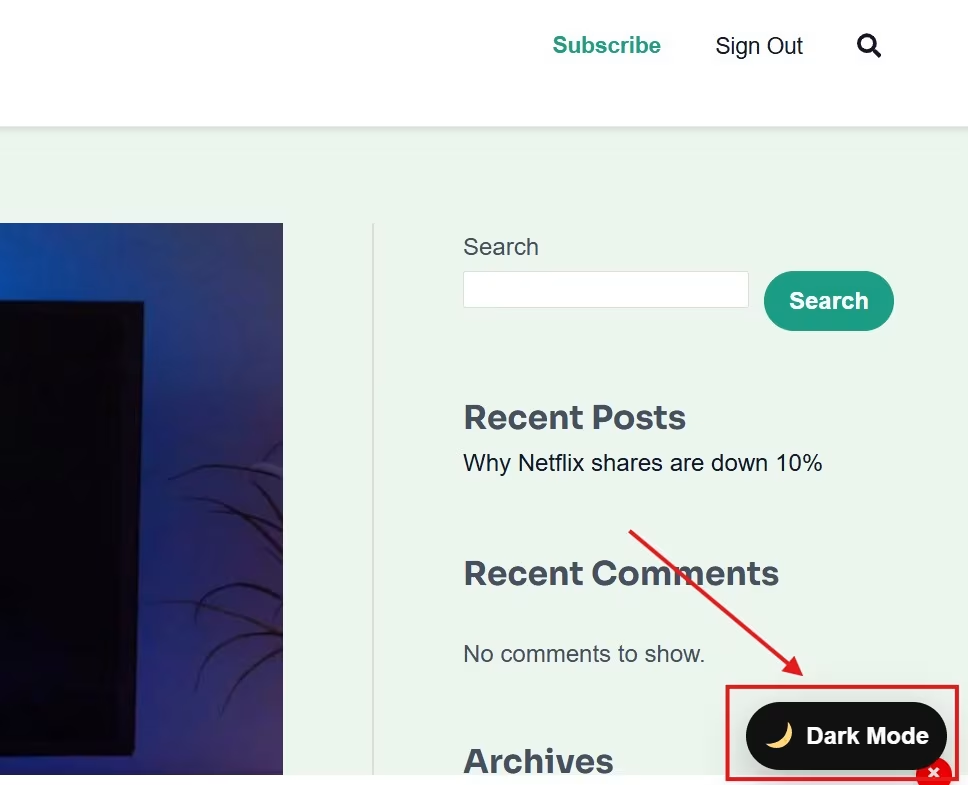
This code creates a dark mode switch button at the bottom-right of your page, toggles colours instantly, and remembers user preference.
Step 1 – Copy This Complete Code
Paste this entire block into your child theme’s functions.php file.
// Simple Dark / Light Mode Switcher (no plugin needed)
add_action('wp_footer', function() {
    $html = <<<'HTML'
<style>
html[data-theme="dark"] {
  --dm-bg: #0b0c0e !important;
  --dm-surface: #111214 !important;
  --dm-text: #e6e7e8 !important;
  --dm-link: #7fb6ff !important;
  --dm-border: rgba(255,255,255,0.05) !important;
}
html[data-theme="dark"],
html[data-theme="dark"] body {
  background: var(--dm-bg) !important;
  color: var(--dm-text) !important;
}
html[data-theme="dark"] header,
html[data-theme="dark"] footer,
html[data-theme="dark"] .site-header,
html[data-theme="dark"] .site-footer {
  background: var(--dm-surface) !important;
  color: var(--dm-text) !important;
}
html[data-theme="dark"] .entry-content,
html[data-theme="dark"] article,
html[data-theme="dark"] .widget,
html[data-theme="dark"] .comment,
html[data-theme="dark"] .comment-content {
  background: rgba(255,255,255,0.02) !important;
  color: var(--dm-text) !important;
  border-color: var(--dm-border) !important;
}
html[data-theme="dark"] a { color: var(--dm-link) !important; }
html[data-theme="dark"] input,
html[data-theme="dark"] textarea,
html[data-theme="dark"] select {
  background: #151617 !important;
  color: var(--dm-text) !important;
  border: 1px solid var(--dm-border) !important;
}
#dm-toggle {
  position: fixed;
  right: 20px;
  bottom: 20px;
  z-index: 999999;
  background: #111;
  color: #fff;
  padding: 10px 14px;
  border-radius: 28px;
  font-weight: 600;
  cursor: pointer;
  box-shadow: 0 10px 30px rgba(0,0,0,0.25);
  display: flex;
  align-items: center;
  gap: 8px;
  user-select: none;
}
#dm-toggle .dm-ico { font-size: 18px; }
</style>

<div id="dm-toggle" role="button" aria-pressed="false" tabindex="0">
  <span class="dm-ico">🌙</span>
  <span class="dm-label">Dark Mode</span>
</div>

<script>
(function(){
  'use strict';
  var btn = document.getElementById('dm-toggle');
  var ico = btn.querySelector('.dm-ico');
  var lbl = btn.querySelector('.dm-label');
  function safeGet(k){ try { return localStorage.getItem(k); } catch(e){ return null; } }
  function safeSet(k,v){ try { localStorage.setItem(k,v); } catch(e){} }
  function applyDark(on){
    if(on){
      document.documentElement.setAttribute('data-theme','dark');
      ico.textContent = '☀️';
      lbl.textContent = 'Light Mode';
    } else {
      document.documentElement.removeAttribute('data-theme');
      ico.textContent = '🌙';
      lbl.textContent = 'Dark Mode';
    }
  }
  var saved = safeGet('theme');
  if(saved === 'dark') applyDark(true);
  else if(saved === 'light') applyDark(false);
  else if(window.matchMedia && window.matchMedia('(prefers-color-scheme: dark)').matches) applyDark(true);
  else applyDark(false);
  btn.addEventListener('click', function(e){
    e.preventDefault();
    var isDark = document.documentElement.getAttribute('data-theme') === 'dark';
    applyDark(!isDark);
    safeSet('theme', !isDark ? 'dark' : 'light');
  });
})();
</script>
HTML;
    echo $html;
});
Step 2 – Save and Refresh
After saving the file, refresh your website (press Ctrl + Shift + R).
You’ll see a small Dark Mode button at the bottom-right corner.
Click it. Your website instantly turns dark.
Click again, and you are back to light mode.
It even remembers your preference for next time.
How It Works
- The script toggles a
data-theme="dark"attribute on the<html>tag. - The CSS inside the code uses this attribute to apply dark colors.
- The preference (dark/light) is saved in
localStorage, so users keep their mode on reload.
No plugin, no external CSS, no slow scripts. Just pure PHP + CSS + JavaScript.
Bonus – Customise the Button Position
If you want the toggle at the top-right corner, change this part in the CSS.
#dm-toggle {
  right: 20px;
  top: 20px;   /* replace bottom:20px with this line */
}
Final Result
- Works on all WordPress themes (Astra, GeneratePress, Block Themes, etc.)
- Instantly toggles dark/light mode
- Saves user choice automatically
- No plugin, no extra file
You’ve now added Dark Mode in WordPress without a Plugin. It is fast, lightweight, and future-proof
Conclusion
This way, we have taught here to use the Dark Mode in WordPress. The step-by-step procedure is guided. We have helped users do it Without Plugins using custom code. It will help users make their websites more user-friendly and attractive.
Kindly share your queries and comments in the comments section. We go through all comments and respond them.
Thank You.
You may also need this