
If you want to create or design a Sticky Header WordPress Without Plugin, then you are at the right place. We will guide you here on making a sticky header without a Plugin.
Though there are certain Plugins available, they will adversely affect your website and slow it down. The result is, it will negatively affect your SEO. So go without a plugin.
Table of Contents
Want your website menu is visible even scrolling? Use the following way to make a sticky header wordpress without plugin.
What’s a Sticky Header WordPress Without Plugin?
A sticky header means your top menu or logo area stays visible even when someone scrolls down the page. This helps visitors:
- Move around your site easily
- Stay longer on your pages
- Always see your branding or navigation
Learn more: What is a Sticky Header? – Nielsen Norman Group
What You’ll Need
You don’t need anything to make it work but few things.
- A working WordPress website
- 5–10 minutes of time
- No plugin, just a small piece of code
Step-by-Step: Add a Sticky Header WordPress Without Plugin
The step-by-step solution is displayed here to make a sticky header WordPress without a plugin.
But before start anything just take a backup of your website.
Step 1 – Find Your Header ID or Class
The first step is that you need an ID for your header. Every WordPress theme header has a unique ID, and we need to find it.
If you want to know the header, then the easiest process is that open the website on Chrome or any other browser and right click and then go to the “Inspect” option.
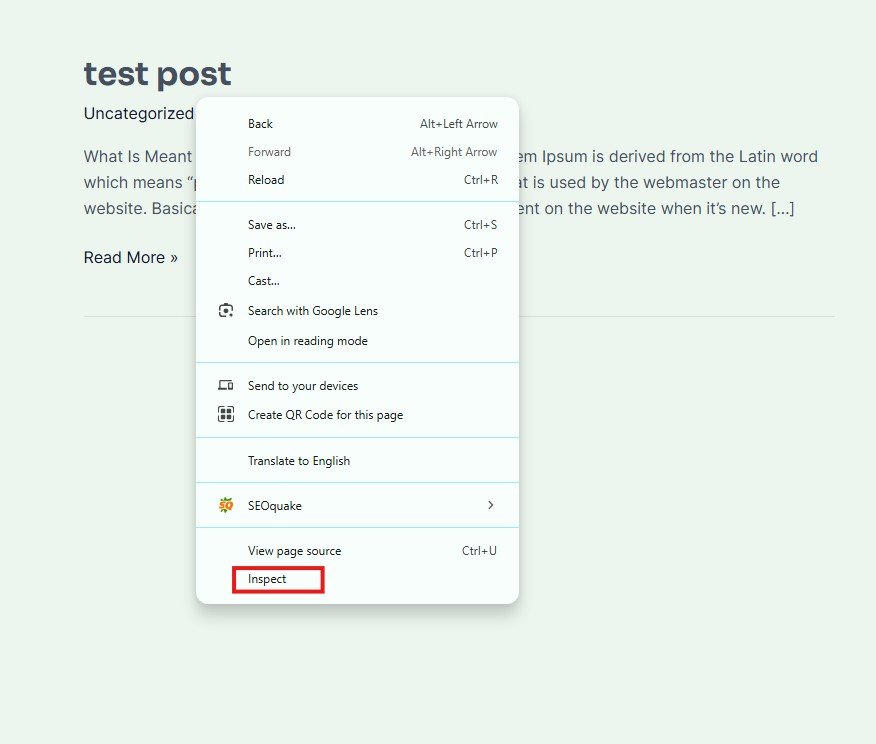
After that click on the element panel and press “ctrl+F”.
In the search bar type “<header” then you have your header.
Then expand the header and find the ID or itemID. Double-click on that and copy it.
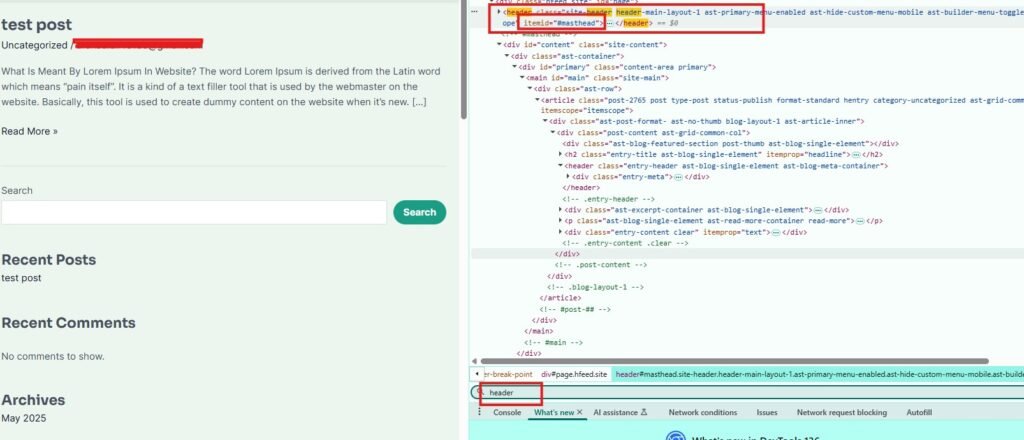
- Open your website
- Right-click on the header (top menu area), and choose “Inspect” (learn how to use Chrome DevTools)
- You’ll see something like:
<header id="site-header">or
<div class="main-header">Step 2: Add This Sticky Code
After copy the header ID go to the dashboard of admin panel. Click on appearance then Additional CSS. In the CSS paste the below code.
Go to:
- Appearance → Customize → Additional CSS
🧩 Paste this code:
#site-header {
  position: sticky;
  top: 0;
  z-index: 999;
  background: #fff;
  box-shadow: 0 2px 4px rgba(0, 0, 0, 0.1);
}
Important: If your header uses a different name, replace #site-header with yours.
If it was <div class="main-header">, then use .main-header instead.
Step 3: Fix Content Overlap (if needed)
If your header cover some of your content part or looks ugly then add some space at the top.
Go back to Additional CSS and add:
body {
  padding-top: 80px; /* Adjust this number to match your header height */
}
Optional – Add a Nice Shadow When Scrolling
Want a cool effect when the user scrolls?
Add this CSS:
#site-header {
  transition: box-shadow 0.3s ease;
}
body.scrolled #site-header {
  box-shadow: 0 2px 5px rgba(0, 0, 0, 0.8);
}
Then add this code in your footer:
Go to Appearance → Theme File Editor → footer.php, and just before </body>, paste this:
<script>
document.addEventListener("scroll", function() {
  document.body.classList.toggle("scrolled", window.scrollY > 10);
});
</script>
Quick Warnings to add a Sticky Header WordPress Without a Plugin
Read this before making changes.
- Now, you are ready. Back up your theme or copy your current header code before editing
- If possible, use a child theme (so your edits don’t vanish after theme updates)
- Always check your site on mobile after adding code
You have done it.
You now have a sticky header. Whenever your visitors visit the website, they will find your menu when scrolling it.
A Note of Caution Before You Start
- Backup your theme (especially if you edit
footer.php). - Use a child theme if you’re adding code that you want to keep after theme updates.
- Test on both desktop and mobile.
Want More?
- Need help making a sticky footer next?
- Want a download copy of this code?
Conclusion
This way, we come to know about making a sticky header in WordPress without login. The custom code and all other relevant step-by-step procedures are defined and detailed.
Follow these code snippets and make your website lighter, faster and better.
Thank You.
You May Also Read This How to add google analytics code without plugin