
Here is the solution of Sticky Table of Contents in WordPress. If you write long blog posts in WordPress, your readers need an easy way to navigate your content.
When an article reaches 2,000+ words, scrolling manually is frustrating. A sticky table of contents in the WordPress sidebar solves this problem beautifully.
Table of Contents
But here’s the issue.
Most tutorials tell you to install a plugin. And most TOC plugins:
- Add unnecessary CSS and JavaScript
- Increase page size
- Slow down performance
- Load features you don’t even need
In this guide, you’ll learn how to create an advanced sticky table of contents in the WordPress sidebar (no plugin required).
This version will:
- Automatically detect H2 and H3 headings
- Display inside the sidebar
- Stay fixed while scrolling
- Stop when the post ends
- Highlight the active section
Let’s build it step by step.
You may also like: Sticky Hearder In WordPress

How It feel Like Sticky Table of Contents in WordPress
Here is a short video that shows what it looks like when implemented properly.

Important Before You Start Sticky Table of Contents in WordPress
Since we are using position: fixed on the sidebar widget:
👉 You should keep only ONE widget in your sidebar.
If you add multiple widgets, they may overlap or break layout.
Step 1 – Add PHP Code (Auto Generate TOC)
Go to:
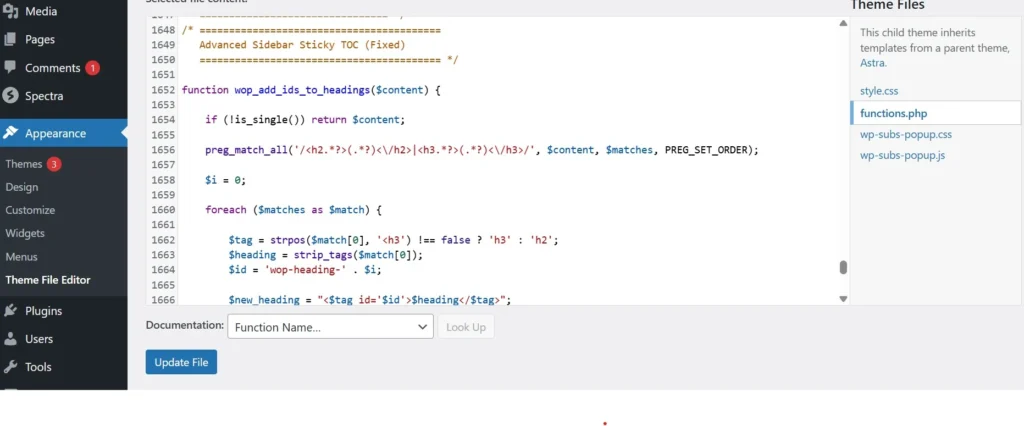
Appearance → Theme File Editor → functions.php
Add the following code at the bottom.
✅ PHP Code
/* Add IDs to H2 and H3 headings */
function wop_add_ids_to_headings($content) {    if (!is_single()) return $content;    preg_match_all('/<h2.*?>(.*?)<\/h2>|<h3.*?>(.*?)<\/h3>/', $content, $matches, PREG_SET_ORDER);    $i = 0;    foreach ($matches as $match) {        $tag = strpos($match[0], '<h3') !== false ? 'h3' : 'h2';
        $heading = strip_tags($match[0]);
        $id = 'wop-heading-' . $i;        $content = str_replace(
            $match[0],
            "<$tag id='$id'>$heading</$tag>",
            $content
        );        $i++;
    }    return $content;
}
add_filter('the_content', 'wop_add_ids_to_headings');/* Generate Sidebar TOC */
function wop_sidebar_toc_shortcode() {    if (!is_single()) return '';    global $post;
    $content = $post->post_content;    preg_match_all('/<h2.*?>(.*?)<\/h2>|<h3.*?>(.*?)<\/h3>/', $content, $matches, PREG_SET_ORDER);    if (!$matches) return '';    $toc = '<div class="wop-toc">';
    $toc .= '<h4>Table of Contents</h4><ul>';    $i = 0;    foreach ($matches as $match) {        $tag = strpos($match[0], '<h3') !== false ? 'h3' : 'h2';
        $heading = strip_tags($match[0]);
        $id = 'wop-heading-' . $i;        $toc .= '<li class="'.($tag === 'h3' ? 'toc-sub' : '').'">';
        $toc .= '<a href="#'.$id.'">'.$heading.'</a></li>';        $i++;
    }    $toc .= '</ul></div>';    return $toc;
}
add_shortcode('wop_sidebar_toc', 'wop_sidebar_toc_shortcode');
Now go to:
Appearance → Widgets → Sidebar
Add a Shortcode widget and insert:
[wop_sidebar_toc]
Done. Your TOC will now appear automatically in the sidebar.
Step 2 – Make Sidebar Sticky (CSS)
Now we make the sidebar widget fixed while scrolling.
Go to:
Appearance → Customize → Additional CSS
✅ CSS Code
/* Make Sidebar Relative */
#secondary {
  position: relative;
}/* Fix Sidebar Widget */
#secondary .widget {
  position: fixed;
  top: 180px;
  width: 300px; /* Adjust to your sidebar width */
}/* TOC Styling */
.wop-toc ul {
  list-style: none;
  padding-left: 0;
}.wop-toc a {
  display: block;
  padding: 6px 0;
  text-decoration: none;
}.wop-toc a.active {
  font-weight: bold;
  color: #0073aa;
}.toc-sub {
  padding-left: 15px;
  font-size: 14px;
}
Adjust top: 180px; based on your header height.
Adjust width: 300px; according to your sidebar width.
Now your table of contents will stay visible while scrolling.
Step 3 – Stop Sticky When Post Ends (JavaScript)
By default, position: fixed sticks forever.
So we calculate the bottom of the post and stop the widget there.
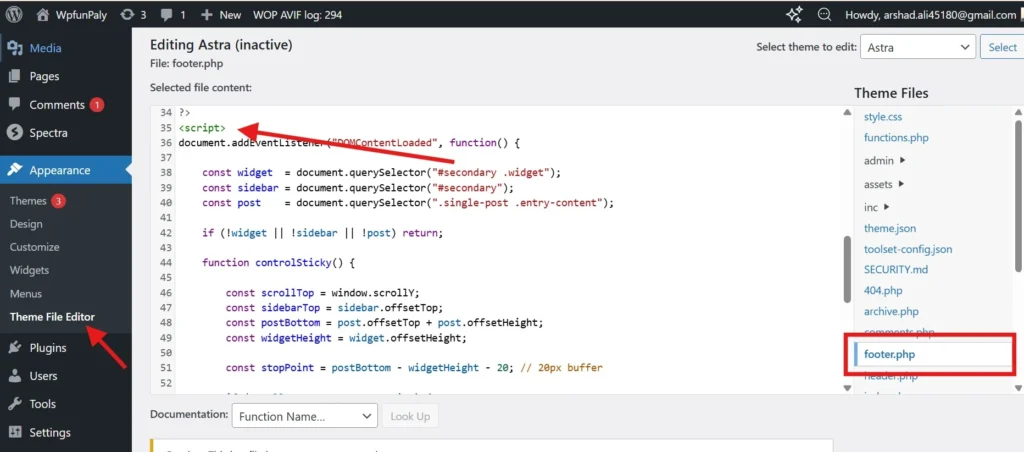
Add this before your closing </body> tag.
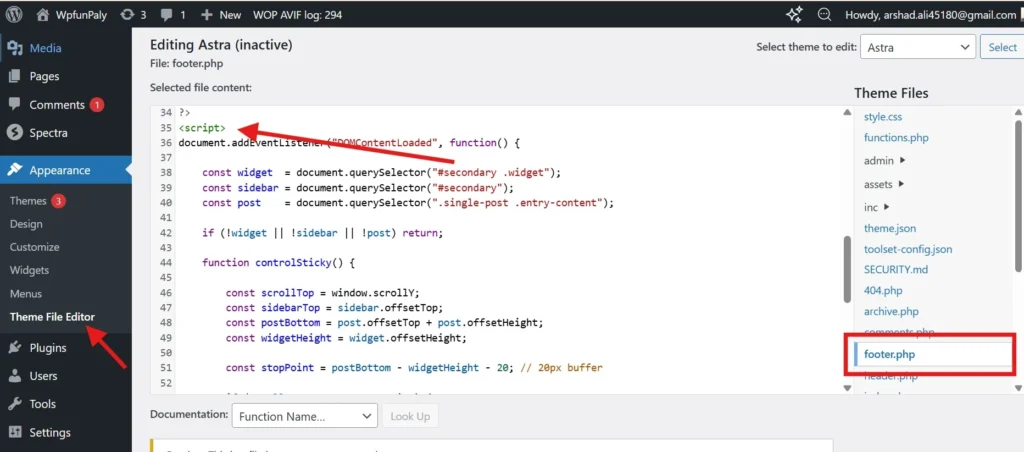
✅ JavaScript Code
<script>
document.addEventListener("DOMContentLoaded", function() {    const widget  = document.querySelector("#secondary .widget");
    const sidebar = document.querySelector("#secondary");
    const post    = document.querySelector(".entry-content");
    const sections = document.querySelectorAll("h2[id], h3[id]");
    const links = document.querySelectorAll(".wop-toc a");    if (!widget || !sidebar || !post) return;    function updateSticky() {        const scrollTop = window.scrollY;
        const sidebarTop = sidebar.offsetTop;
        const postBottom = post.offsetTop + post.offsetHeight;
        const widgetHeight = widget.offsetHeight;        const stopPoint = postBottom - widgetHeight - 20;        if (scrollTop + 180 >= stopPoint) {            widget.style.position = "absolute";
            widget.style.top = (stopPoint - sidebarTop) + "px";        } else {            widget.style.position = "fixed";
            widget.style.top = "180px";
        }        /* Scroll Highlight */
        let scrollPos = window.scrollY + 200;        sections.forEach(section => {            if (
                scrollPos >= section.offsetTop &&
                scrollPos < section.offsetTop + section.offsetHeight
            ) {                links.forEach(link => link.classList.remove("active"));                let id = section.getAttribute("id");
                let activeLink = document.querySelector('.wop-toc a[href="#' + id + '"]');                if (activeLink) {
                    activeLink.classList.add("active");
                }
            }
        });
    }    window.addEventListener("scroll", updateSticky);
    window.addEventListener("resize", updateSticky);    updateSticky();
});
</script>
Now your sticky sidebar TOC will:
- Stay fixed while reading
- Stop exactly at the end of the post
- Highlight the active section
🧪 Testing Notes
This Advanced Sticky Table of Contents in WordPress Sidebar (No Plugin) setup was tested under the following conditions:
✔ Tested on: WordPress 6.6+
✔ Theme tested: Astra (Free & Pro)
✔ PHP versions: 7.4, 8.0, 8.1, 8.2
✔ Editor compatibility: Gutenberg & Classic Editor
✔ Sidebar layout: Right sidebar (fixed width 300px)
✔ Header offset tested: 120px – 200px
✔ Browser tested: Chrome, Edge, Firefox
✔ CDN tested: Cloudflare enabled
Final Result
You now have:
✔ Advanced sticky table of contents in WordPress sidebar
✔ Fully automatic heading detection
✔ Scroll highlight
✔ Stops at the post end
✔ Lightweight solution
✔ No plugin
This approach gives you full control without slowing down your website.