
If you are looking to build a contact form in WordPress without Plugin, then this post will guide you cent per cent. It will provide you with the complete solution with spam protection and keep your website secure and lightweight.
In this tutorial, we’ll demonstrate the complete procedure.
- Create a working contact form without any plugins
- Send emails using WordPress’s built-in
wp_mail() - Avoid spam using a honeypot trap (no CAPTCHA needed)
Let’s build it step by step.
Table of Contents
Steps to Create Contact Form in WordPress Without Plugin
We will learn here this process. The procedure is defined and detailed in steps. We give here how to “Create Contact Form in WordPress Without a Plugin.”
Follow these instructions given here to create a Contact Form without using any Plugin.
Step 1: Create the Create Contact Form in WordPress Without Plugin with a Shortcode
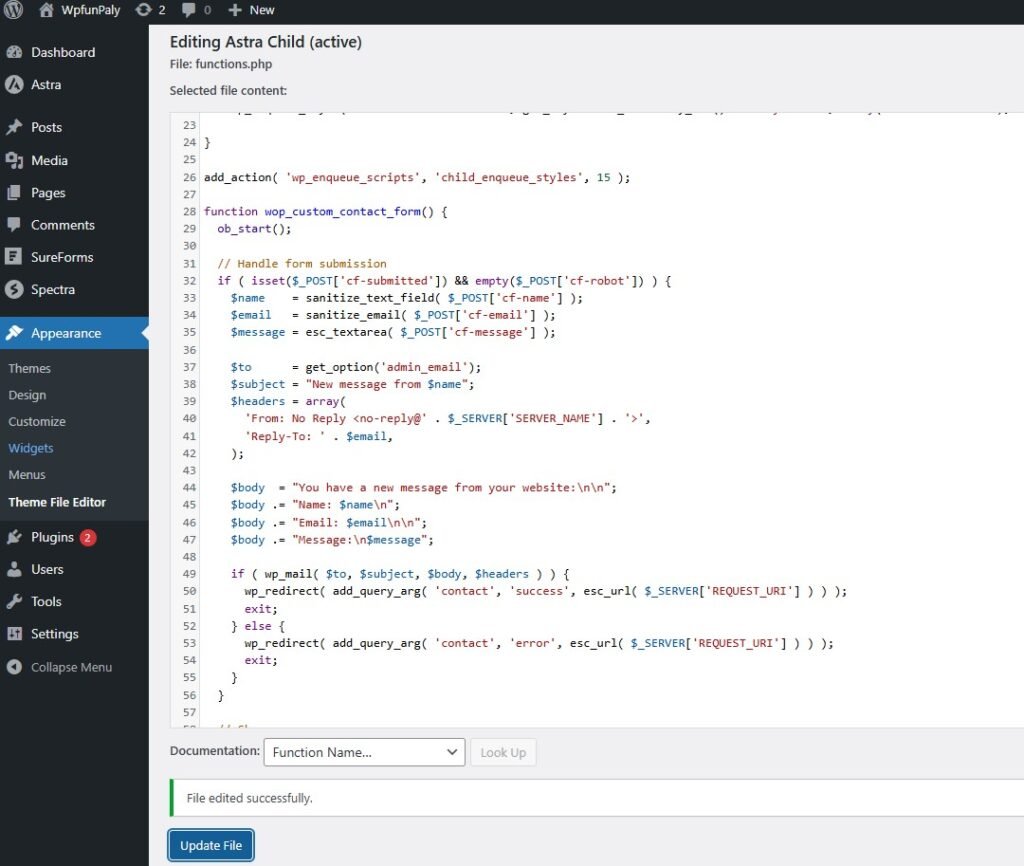
Go to your function.php file placed in Appearance → Theme File Editor→ Function.php
Open this file.
Warning: Always take backup before edit this file.
Add the following code to your theme’s functions.php file:
function wop_custom_contact_form() {
  ob_start();

  // Handle form submission
  if ( isset($_POST['cf-submitted']) && empty($_POST['cf-robot']) ) {
    $name    = sanitize_text_field( $_POST['cf-name'] );
    $email   = sanitize_email( $_POST['cf-email'] );
    $message = esc_textarea( $_POST['cf-message'] );

    $to      = get_option('admin_email');
    $subject = "New message from $name";
    $headers = array(
      'From: No Reply <no-reply@yourdomain.com>',
      'Reply-To: ' . $email,
    );

    $body  = "You have a new message from your website:\n\n";
    $body .= "Name: $name\n";
    $body .= "Email: $email\n\n";
    $body .= "Message:\n$message";

    if ( wp_mail( $to, $subject, $body, $headers ) ) {
      wp_redirect( add_query_arg( 'contact', 'success', esc_url( $_SERVER['REQUEST_URI'] ) ) );
      exit;
    } else {
      wp_redirect( add_query_arg( 'contact', 'error', esc_url( $_SERVER['REQUEST_URI'] ) ) );
      exit;
    }
  }

  // Show success or error message
  if ( isset($_GET['contact']) ) {
    if ( $_GET['contact'] === 'success' ) {
      echo '<div class="cf-success">✅ Your message has been sent successfully.</div>';
    } elseif ( $_GET['contact'] === 'error' ) {
      echo '<div class="cf-error">❌ Message failed. Please try again later.</div>';
    }
  }

  // Display form
  ?>
  <form action="" method="post">
    <p>
      📛 Your Name (required)<br>
      <input type="text" name="cf-name" required>
    </p>
    <p>
      📧 Your Email (required)<br>
      <input type="email" name="cf-email" required>
    </p>
    <p>
      📝 Your Message<br>
      <textarea name="cf-message" rows="5" required></textarea>
    </p>
    <p style="display:none;">
      <input type="text" name="cf-robot" value="">
    </p>
    <p>
      <input type="submit" name="cf-submitted" value="Send Message">
    </p>
  </form>
  <?php

  return ob_get_clean();
}
add_shortcode('wop_contact_form', 'wop_custom_contact_form');
Keep in mind to change this line with your domain name:
‘From: No Reply <no-reply@yourdomain.com>’,
Step 2: Add the Shortcode to Any Page
This code is required to be placed where you want to display the contact form.
Open that page in the editor, like go to Pages > Add New, and insert this shortcode into a Shortcode block.
[wop_contact_form]Your custom contact form will now appear on that page.
Step 3: Block Bots Using a Honeypot
You’ve already included a honeypot in the form –
<p style="display:none;">
  <input type="text" name="cf-robot" value="">
</p>
And in the PHP handler:
if ( isset($_POST['cf-submitted']) && empty($_POST['cf-robot']) ) {How it works: Real users never fill this hidden field. But spam bots often do. If it’s filled, we silently reject the form.
No CAPTCHA. No plugins. Just clean logic.
Step 4: Style the Form (Optional) of Create Contact Form in WordPress Without Plugin
Make your form to look nice to your visitors. Want the form to look nice? Add this CSS under:
Appearance → Customize → Additional CSS:
form input, form textarea {
  width: 100%;
  padding: 10px;
  margin-bottom: 15px;
  border: 1px solid #ccc;
  border-radius: 5px;
}

input[type="submit"] {
  background-color: #1e90ff;
  color: white;
  border: none;
  padding: 10px 20px;
  cursor: pointer;
  border-radius: 4px;
}

.cf-success {
  background-color: #e6ffe6;
  border-left: 5px solid #00cc66;
  padding: 10px;
  margin-top: 15px;
}

.cf-error {
  background-color: #ffe6e6;
  border-left: 5px solid #cc0000;
  padding: 10px;
  margin-top: 15px;
}
What This Form Doesn’t Need
- No Contact Form 7
- No WPForms
- No CAPTCHA
- No JavaScript
Summary
| Feature | ✅ Done? |
|---|---|
| Custom contact form | ✅ |
| Plugin-free | ✅ |
| Spam protection | ✅ (honeypot) |
| SMTP-ready | ⚠️ Optional (see below) |
Pro Tip: Improve Deliverability with SMTP
If your form emails go to spam:
- Use your domain email (
no-reply@yourdomain.com) - Add
SPFandDKIMDNS records - Optionally configure SMTP via
functions.phpor WP Mail SMTP plugin
🔐 Email security and delivery is worth doing right.
Concluding Tips to Create Contact Form in WordPress Without Plugin
You don’t require at all to go for a heavy plugin to create a working, stylish contact form.
With a bit of HTML, PHP, and CSS, your site can stay fast, clean, and totally under your control.
At WithoutPlugin.com, we believe in keeping things simple and efficient. Less is more.
You may also read this Make a Sticky Header WordPress Without Plugin