
If you are interested in adding extra information to your WordPress posts via Custom Fields in WordPress, like a YouTube video link, a product price, or a rating. And you want to do it without installing another plugin like ACF?
The best part is that it is possible, and that too without using any Plugin. You just need to write a little code to use them. The WordPress website has this built-in support for custom code.
Table of Contents
In this post, I’ll show you get the following topics.
- Add a custom input box in the post editor
- Save the data
- Without using any plugin, show the value on your website.
Let’s begin.
What Are Custom Fields in WordPress?
Custom fields (also called post meta) let you store extra information with your posts.
For example:
- Add a “Video URL” field to show a video link
- Add a “Price” field for product posts
- Add a “Recipe Time” field for food blogs
You may also need this: Make Sticky Head in WordPress
Step 1: Add a Custom Fields in WordPress in the Post Editor
Below, you will find a Custom Box. Enter a value like a YouTube link and post it on the editor. Code to Add:
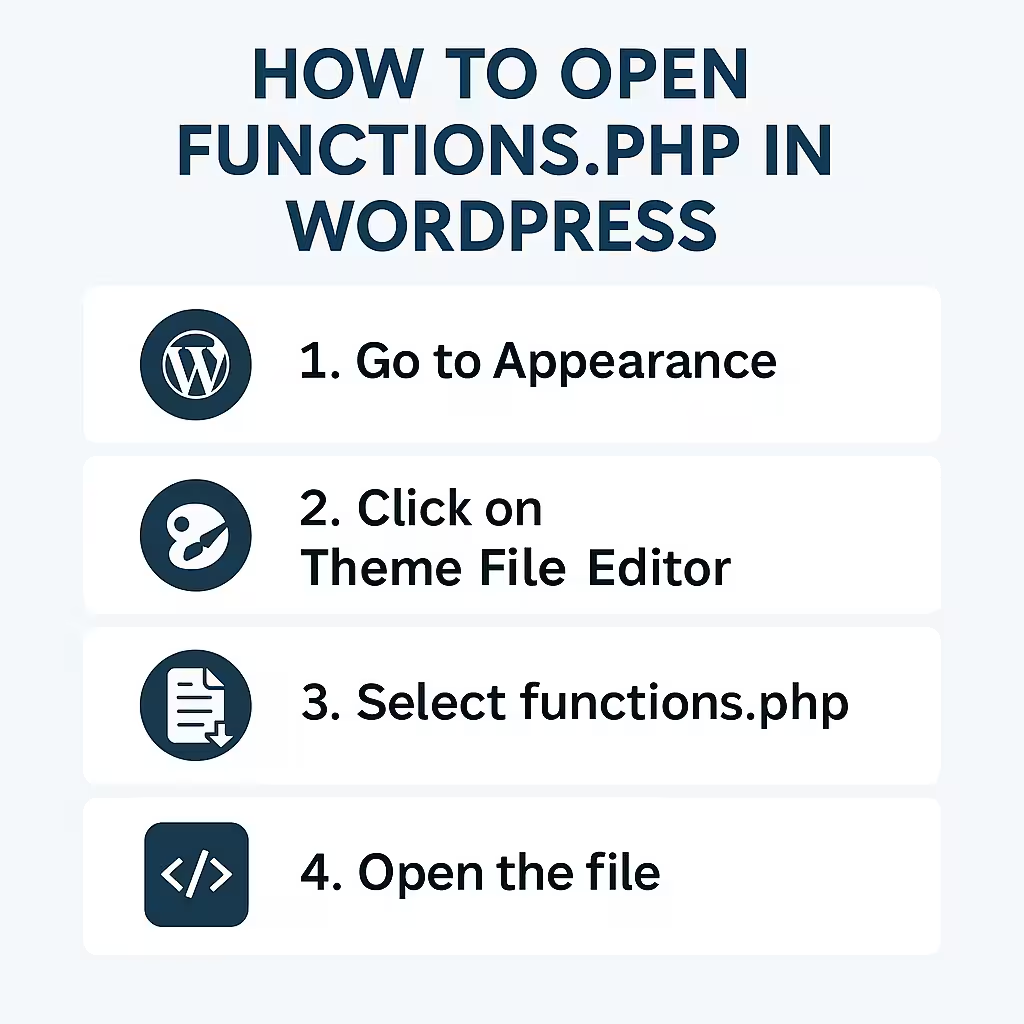
Open your theme’s functions.php file (or use a child theme), and paste this:
// Add custom field meta box
function wp_custom_video_meta_box() {
    add_meta_box(
        'custom_video_url_box',           // ID
        'Video URL',                      // Title shown in editor
        'wp_custom_video_url_callback',   // Function to display input
        'post',                           // Post type
        'normal',                         // Location
        'default'                         // Priority
    );
}
add_action('add_meta_boxes', 'wp_custom_video_meta_box');

// Show input field inside the box
function wp_custom_video_url_callback($post) {
    $value = get_post_meta($post->ID, '_video_url', true);
    echo '<label for="wp_custom_video_url">Paste a YouTube or video link:</label><br>';
    echo '<input type="text" name="wp_custom_video_url" value="' . esc_attr($value) . '" style="width:100%;" />';
}

// Save field value
function wp_save_custom_video_url($post_id) {
    if (isset($_POST['wp_custom_video_url'])) {
        update_post_meta($post_id, '_video_url', sanitize_text_field($_POST['wp_custom_video_url']));
    }
}
add_action('save_post', 'wp_save_custom_video_url');
What it does
- Adds a “Video URL” box below your post editor
- Saves the value you enter as a custom field called
_video_url
Step 2: Add the Field Value in a Post
- Go to your WordPress dashboard.
- Edit a blog post or create a new one.
- Scroll down — you’ll now see a box titled “Video URL”.
- Paste a YouTube link (like
https://youtu.be/abc123) in the box. - Click Update to save the post.
Done! The value is now saved. The next step is to let’s show it on your website.
Step 3: Show the Custom Fields in WordPress on Your Website
The custom field will be displayed. Go to the WordPress website and enter the video_url value on the post page.
➤ Add this code to your functions.php file:
phpCopyEdit// Show the video URL after post content
function wp_show_video_url_after_content($content) {
    if (is_singular('post') && in_the_loop() && is_main_query()) {
        $video_url = get_post_meta(get_the_ID(), '_video_url', true);

        if (!empty($video_url)) {
            $output = '<div class="custom-video-link" style="margin-top:20px;padding:10px;background:#f9f9f9;border-left:4px solid #0073aa;">';
            $output .= '🎥 <strong>Watch Video:</strong> <a href="' . esc_url($video_url) . '" target="_blank">' . esc_html($video_url) . '</a>';
            $output .= '</div>';

            $content .= $output; // Append to post content
        }
    }

    return $content;
}
add_filter('the_content', 'wp_show_video_url_after_content');
What this does:
- Hooks into the main post content
- Checks if a value exists for
_video_url - Adds a styled video link after the post
Step 4: Test It
Now visit any post where you added a video URL.
You should see something like this under your content:
🎥 Watch Video: https://youtube.com/your-link
If it’s not showing:
- Double-check you entered a value and clicked Update
- Make sure you’re on a single post page
- Confirm the field name is
_video_url(with underscore)
Key Bonus Tips
Want to:
- Embed the video instead of showing a link?
- Display fields before the content?
- Add multiple custom fields (like “price” and “location”)?
You can do all of that — just ask, and I’ll show you how in future posts.
Conclusion
This method works in all major WordPress themes, including Astra, GeneratePress, Kadence, and even block themes, because it uses core WordPress features.
No plugins. No bloat. Just clean, native WordPress.
It will make your website faster, lightweight, amd hassle-free.
Kindly share your opinions and queries in the comment section. We interact with our readers, coders, integrators, and users.
If you found this helpful, bookmark WithoutPlugin.com, and let your WordPress breathe freely again.
Thank you.