
Add Google Analytics to WordPress without plugin is no longer an issue; it is easy, simple, possible, and effective. This post helps you guide to dd analytics code to your website.
When there are so many Plugins, they hinder the speed of the website. If we want to make our website run faster and lighter, we need to add features without plugin.
Table of Contents
Why Avoid Plugins to Add Google Analytics to WordPress?
Here is the list of benifits if you Add Google Analytics to WordPress Without Plugin.
- Faster site load time
- Better control over your code
- No bloated features or unnecessary updates
Step-by-Step Guide to Add Google Analytics to WordPress Without Plugin
The step-by-step analysis is described here.
🔧 Step 1: Get Your Google Analytics Tracking Code
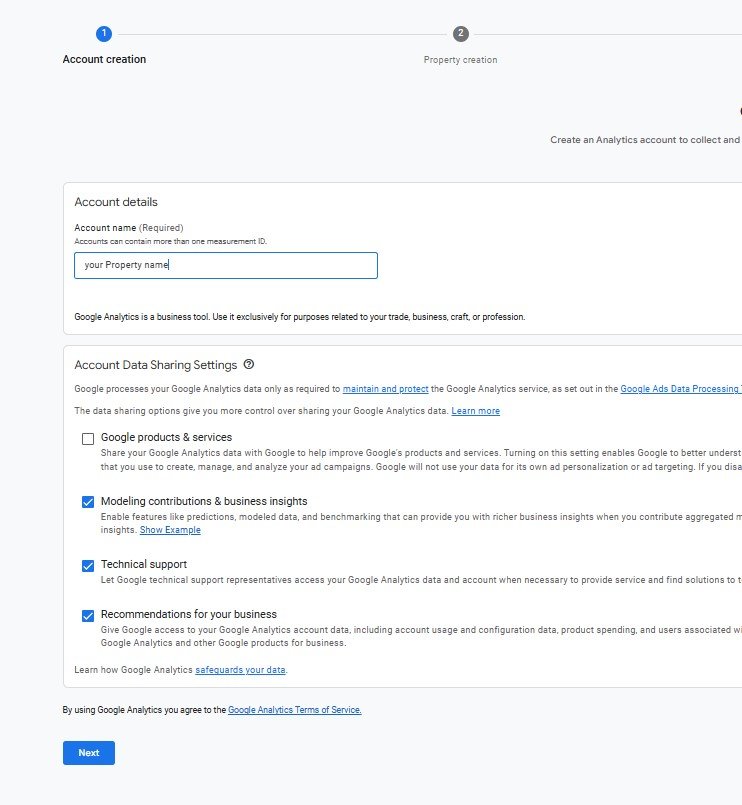
- Go to analytics.google.com
- Sign in and create a property
- Choose “Web” as the platform
- You’ll get a tracking code that looks like this:
<!-- Google tag (gtag.js) -->
<script async src="https://www.googletagmanager.com/gtag/js?id=G-XXXXXXXXXX"></script>
<script>
  window.dataLayer = window.dataLayer || [];
  function gtag(){dataLayer.push(arguments);}
  gtag('js', new Date());
  gtag('config', 'G-XXXXXXXXXX');
</script>
🖊️ Step 2: Add Google Analytics to WordPress Without Plugin to header.php
File to Edit:
/wp-content/themes/your-theme/header.php
- Go to Appearance → Theme File Editor
- Open the file called header.php
- Paste the tracking code before the closing
</head>tag
Example:
<head>
  ...
  <!-- Google Analytics -->
  <script async src="https://www.googletagmanager.com/gtag/js?id=G-XXXXXXXXXX"></script>
  <script>
    window.dataLayer = window.dataLayer || [];
    function gtag(){dataLayer.push(arguments);}
    gtag('js', new Date());
    gtag('config', 'G-XXXXXXXXXX');
  </script>
  ...
</head>
Make sure you replace G-XXXXXXXXXX with your actual tracking ID.
Step 3: Verify It’s Working
- Open your site in a browser
- Go to Google Analytics → Realtime to check for visits
- You can also inspect with browser DevTools to confirm the script loads
Important Warnings Before You Add Google Analytics to WordPress Without Plugin
Don’t jump to editing. Understand a few technical points and read these caution points and warnings.
These are simple yet powerful information to save and improve your website rather than breaking it.
1. Back Up Before You Touch Anything
On WordPress websites, you can make mistakes if you are not aware of all the factors. One wrong selection or character can destroy your efforts or crash your site.
Before you paste the Google Analytics code, copy everything inside your header.php file and save it somewhere safe, like in Notepad or your email.
That way, if anything goes wrong, you can restore the original file in seconds.
2. Don’t Edit Your Main Theme (Use a Child Theme)
If you’re using a theme you installed from WordPress or a theme marketplace, don’t edit it directly. When that theme updates, your changes will disappear.
The better way is to use a child theme, a safer copy of your theme meant for custom changes.
If you’re not using a child theme, just remember: you’ll have to redo this process every time your theme updates.
3. Paste the Code in the Right Spot
When you edit the header.php file, scroll down and look for the line that says </head>.
Paste your Google Analytics script right before that line, like this:
phpCopyEdit<!-- Your GA tracking code goes here -->
</head>
Don’t put it inside a function, comment, or after the </head> — it won’t work if it’s in the wrong place.
4. Only Use One Analytics Script
If you’ve already added Google Analytics using a plugin (like Site Kit or MonsterInsights), adding it again manually will mess up your stats.
Check first – If you see the code already in your site’s source, don’t add it again.
5. Check Your Site After Saving
Once the file is updated, open it in a new tab and confirm everything is okay and functions properly.
If you see a blank page or an error, don’t panic. Just go back and replace the file with your backup.
Bonus: Open your browser’s developer tools (press F12), click the Console tab, and make sure there are no red errors showing.
Conclusion
The post has guided you not to use heavy plugins, but to use the website without plugins for faster and smoother experiences.
The custom code will solve your problem, and you can easily add Google Analytics through it.
Share your queries and suggestions via the comment section.
Thank You.