
To improve the user experience on the WordPress website, the ‘Back to Top button in WordPress’ plays a big role. It is especially useful if the content page is long.
Through this tab, visitors can quickly go to the top page without manually scrolling. It keeps the website clean, advanced and easy to navigate.
Table of Contents
The best part?
You don’t need any plugin.
Not even jQuery.
Just pure HTML + CSS + JavaScript, which keeps your site fast and lightweight.
The post will guide users regarding multiple versions of the Back to Top button. We also include a floating button version that looks premium on both mobile and desktop.
Let’s begin.
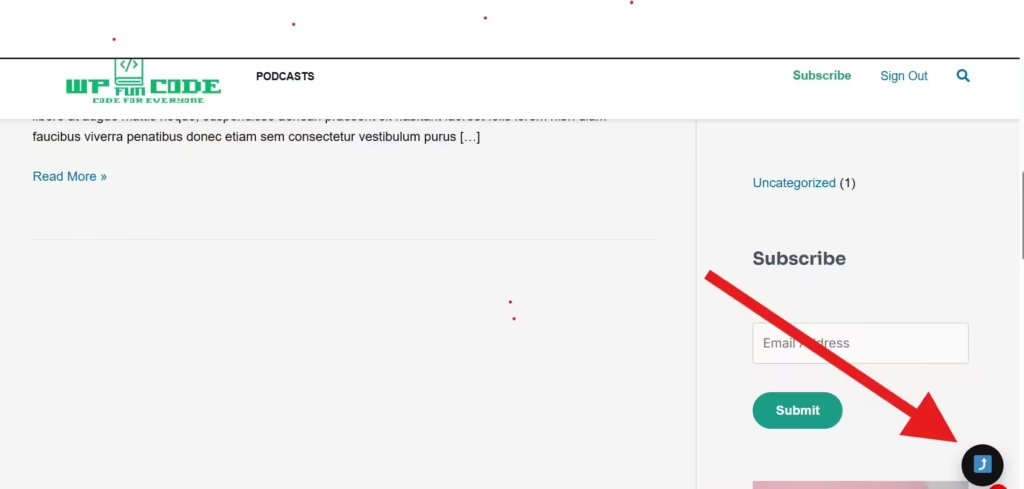
Why Add a Back to Top Button In WordPress?
Here’s why almost every premium theme includes one.
- It helps users go through long posts smoothly.
- The button improves the overall website experience
- Reduces bounce rate on content-heavy pages
- Looks professional and polished
- Works on all WordPress themes
- Lightweight, zero plugin bloat
Since this is withoutplugin.com, we only use clean, custom code.
1. Add Basic “Back to Top” Button In WordPress (Simple Code)
You can create a normal Back to Top button with just three small steps.
Step 1: Add HTML Button
Add this inside footer.php right before </body>
<a id="backToTop" href="#" class="back-to-top">↑</a>
Step 2: Add CSS Styling
Go to Appearance → Customize → Additional CSS and paste
.back-to-top {
    position: fixed;
    bottom: 30px;
    right: 30px;
    background: #000;
    color: #fff;
    padding: 12px 16px;
    border-radius: 50%;
    font-size: 22px;
    display: none;
    cursor: pointer;
    z-index: 9999;
    transition: 0.3s ease;
}
.back-to-top:hover {
    background: #333;
}
Step 3: Add Smooth Scroll JavaScript
Paste this right below the HTML button (or enqueue it)
<script>
document.addEventListener("DOMContentLoaded", function () {
    const backBtn = document.getElementById("backToTop");

    window.addEventListener("scroll", function () {
        backBtn.style.display = window.scrollY > 300 ? "block" : "none";
    });

    backBtn.addEventListener("click", function (e) {
        e.preventDefault();
        window.scrollTo({ top: 0, behavior: "smooth" });
    });
});
</script>
It is done now.
You now have a working scroll-to-top button.
2. Floating Back to Top Button In WordPress (Premium Style)
It is a more advanced, animated, and user-friendly version. The appearance of a fade-up effect on mobile screens looks great.
Step 1: Add Floating Button HTML
Place this inside footer.php before </body>
<a id="wop-back-to-top" class="wop-back-to-top" href="#" aria-label="Back to top">
  <span>⤴</span>
</a>
Step 2: Add Floating CSS Style
Paste this in Additional CSS.
.wop-back-to-top {
  position: fixed;
  bottom: 22px;
  right: 22px;
  width: 52px;
  height: 52px;
  display: flex;
  align-items: center;
  justify-content: center;
  background: #111;
  color: #fff;
  border-radius: 50%;
  font-size: 22px;
  cursor: pointer;
  opacity: 0;
  transform: translateY(10px);
  transition: .3s ease;
  pointer-events: none;
  z-index: 99999;
}

.wop-back-to-top.wop-visible {
  opacity: 1;
  transform: translateY(0);
  pointer-events: auto;
}

.wop-back-to-top:hover {
  transform: translateY(-3px);
  background: #333;
}
Step 3: Add Floating Button JavaScript
<script>
document.addEventListener('DOMContentLoaded', function () {
  var btn = document.getElementById('wop-back-to-top');

  window.addEventListener('scroll', function () {
    if (window.scrollY > 350) {
      btn.classList.add('wop-visible');
    } else {
      btn.classList.remove('wop-visible');
    }
  });

  btn.addEventListener('click', function (e) {
    e.preventDefault();
    window.scrollTo({ top: 0, behavior: 'smooth' });
  });
});
</script>
Your floating button is now fully functional.
3. Cleaner Method: Add Entire Button Using functions.php
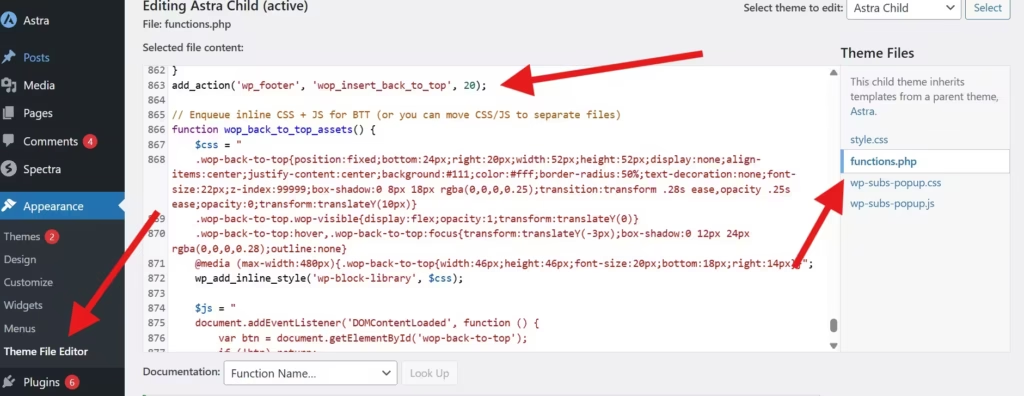
Instead of editing footer.php, you can inject everything directly from functions.php.
Just paste this:
function wop_back_to_top_button() {
    echo '<a id="wop-back-to-top" class="wop-back-to-top" href="#" aria-label="Back to top"><span>⤴</span></a>';
}
add_action('wp_footer', 'wop_back_to_top_button');

function wop_back_to_top_assets() {
?>
<style>
/* CSS from above here */
</style>
<script>
/* JS from above here */
</script>
<?php
}
add_action('wp_footer', 'wop_back_to_top_assets');
This method keeps everything upgrade-safe and theme-friendly.
4. Customize Your Back to Top Button In WordPress
You can easily change:
Color:
background: #1e73be;
Icon:
↑ ⤴ ⇧ ⬆ ⮝
Shape:
Rounded square:
border-radius: 12px;
Position:
right: 15px;
bottom: 15px;
Shadow:
box-shadow: 0 8px 20px rgba(0,0,0,0.25);
Make it match your brand style.
Conclusion
We have demonstrated here, adding a “Back to Top” button in WordPress without a Plugin. With a clean code snippet, you can add a floating or simple button as you like. It makes your site look good and impressive.
This lightweight method keeps your site fast, SEO-friendly, and completely free from plugin overhead.
The tutorial is exceptional for users who are using Astra, GeneratePress, Block Theme, or any custom design.
Kindly share your comments and suggestuions. You can also raise queries in the comment section. We respnd to all comments.
Thank You.
You may also need this
Convert theme into dark mode: https://withoutplugin.com/dark-mode-in-wordpress