
Configure SMTP in WordPress can be easily and swiftly configured in WordPress. If your inbox is not receiving the WordPress email, you need not be worried. This occurs in many cases, and many people are facing similar issues.
WordPress uses PHP’s mail() mode to send and receive emails, and it is a default feature.
Table of Contents
The issue arises when the host provider considers it as spam or blocks it altogether.
Users can easily fix this issue by setting up the SMTP. It is not difficult, it is easy. The cherry on top is that you don’t require any plugin. It can be done without a Plugin.
This post will guide you through the process and procedure of the configuring the SMTP in WordPress manually.
What is SMTP?
The full form of SMTP is Simple Mail Transfer Protocol.
This methodology is to send the ideal and standardised emails without compromising the security of the account. It secures your Gmail, Outlook, or your domain’s email, like info@yourdomain.com.
SMTP ensures the messages get authenticated without being sidelined as spams. This approach is more trusted and proficient compared to the default PHP mail method.
Step 1: Create Your Email Account
IIf you have an email address for personal or business use, you can easily use it. If you don’t have an email address, you can create one for yourself. You have to go to the cPanel first.
Email Account Creation
Before creating an email, you require these things.
- SMTP Host (like smtp.yourdomain.com or smtp.gmail.com)
- SMTP Port (usually 465 or 587)
- Email address
- Password
You will require them in the next step.
Step 2: Configure SMTP in WordPress to functions.php
In this second step, we will inform and enroute WordPress to send all its emails through your SMTP server rather than PHP mail.
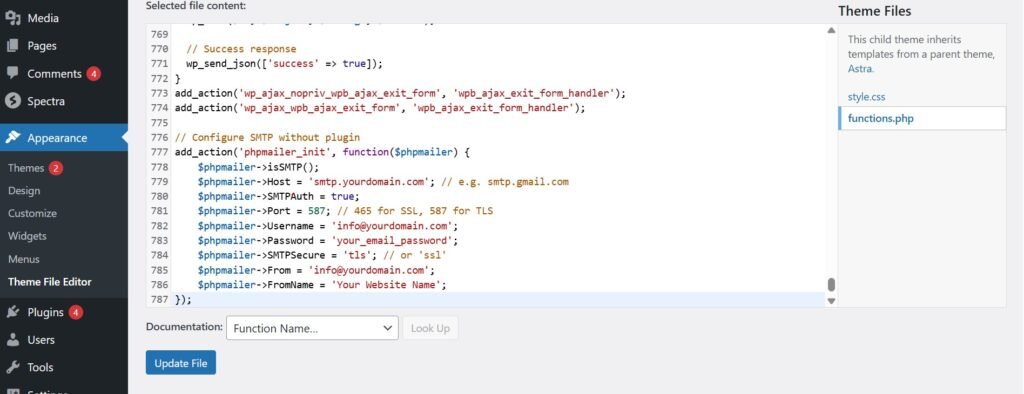
Go to the activated theme’s functions.php file and add the mentioned code.
// Configure SMTP without plugin
add_action('phpmailer_init', function($phpmailer) {
    $phpmailer->isSMTP();
    $phpmailer->Host = 'smtp.yourdomain.com'; // e.g. smtp.gmail.com
    $phpmailer->SMTPAuth = true;
    $phpmailer->Port = 587; // 465 for SSL, 587 for TLS
    $phpmailer->Username = 'info@yourdomain.com';
    $phpmailer->Password = 'your_email_password';
    $phpmailer->SMTPSecure = 'tls'; // or 'ssl'
    $phpmailer->From = 'info@yourdomain.com';
    $phpmailer->FromName = 'Your Website Name';
});
Ensure to change the email address, password, and SMTP host with the actual credentials.
The set function will connect to the WordPress email system. It will send all its emails through the SMTP credentials.
Step 3: Test If Configure SMTP in WordPress is Functional
In this step, test your configuration works properly after temporarily adding the small snippets to functions.php.
add_action('init', function() {
    if (isset($_GET['sendtest'])) {
        wp_mail('your@email.com', 'SMTP Test', 'SMTP is working perfectly!');
        echo 'Test email sent successfully.';
        exit;
    }
});
After it, go to the browser and open the following URL
https://yourdomain.com/?sendtest=1
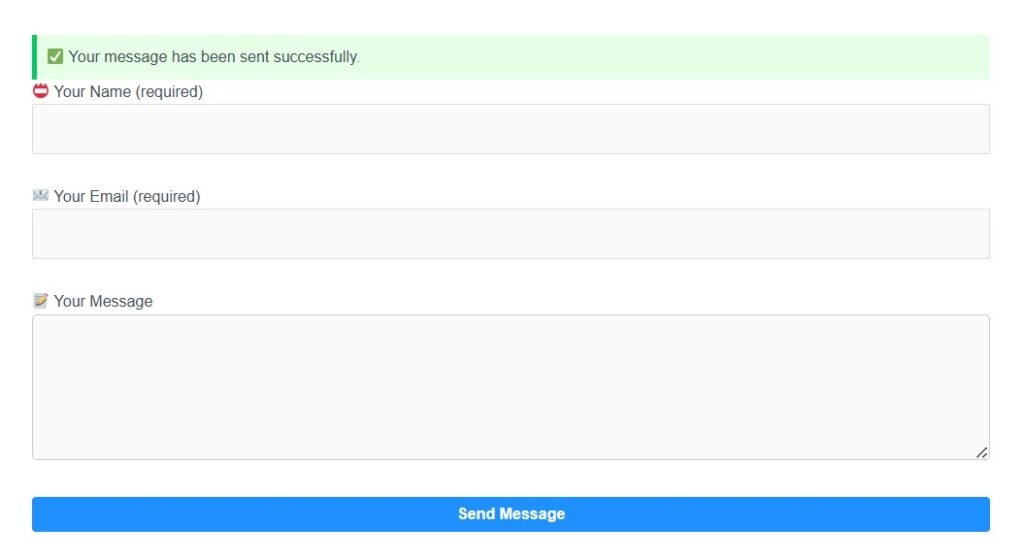
After testing, remove the code snippet to keep your file clean.
Step 4: Hide Password When Configuring SMTP in WordPress (Optional & Recommended)
You need to consider twice before leaving the SMTP password inside functions.php.
For stronger security, go to the wp-config.php and add this line with …
define('WP_SMTP_PASS', 'your_email_password');
Then go to the SMTP function and rewrite the password line with ..
$phpmailer->Password = WP_SMTP_PASS;
By taking these steps, you will be able to keep the data outside the theme files. It will be easier to manage and operate at a later stage for you.
General SMTP Settings in Configure SMTP in WordPress
| Email Provider | SMTP Host | Port | Encryption |
|---|---|---|---|
| Gmail | smtp.gmail.com | 587 | TLS |
| Outlook | smtp.office365.com | 587 | STARTTLS |
| Yahoo | smtp.mail.yahoo.com | 465 | SSL |
| Zoho | smtp.zoho.com | 465 | SSL |
| Hostinger / cPanel | smtp.yourdomain.com | 465 | SSL |
If you’re using Gmail, remember you may need to enable “App Passwords” if 2-Step Verification is turned on.
Why Avoid Plugins & Use Custom Code Configure SMTP in WordPress?
YUse plugins like WP Mail SMTP. But if you do them manually, it will be far better.
- Your site will have no extra plugin load.
- You will not face issues like updates and compatibility.
- Give you more control over your setup.
- Cleaner and faster performance
These measures will keep your site lightweight. It will load quickly and give users a better experience.
Conclusion
This way, you will configure SMTP in WordPress successfully without any fuss and more so in no time. The SMTP is configured without Plugins.
Your contact forms, order emails, and password resets will be delivered more reliably and with less chance of landing in spam.
This WithoutPlugin menthod is much better compared to the Plugin. It will help immensely all developers and site owners who want to get rid of heavy Plugins.
Kindly share your opinions and queries in the comment section.
Thank You.
You may also need this