
Preloading fonts in WordPress is one of the easiest ways to improve WordPress performance, especially your LCP (Largest Contentful Paint) and FCP (First Contentful Paint) scores. When you preload a font, the browser fetches it early, preventing layout shifts and slow text rendering.
This guide shows the exact steps to preload fonts in WordPress without using any plugin, including how to find your font URLs, how to add preload code safely, and how to verify it works.
Table of Contents
🧪 Testing Notes of Preload Fonts in WordPress
✔ Tested on: WordPress 6.6+
✔ Theme: Astra Pro
✔ PHP Versions: 7.4 / 8.0 / 8.2
✔ Verified on: PageSpeed Insights, Chrome DevTools, Cloudflare CDN
✔ Browsers: Chrome (Desktop + Mobile)
You may also need this: GZIP Compression In wordpress Without Plugin
⭐ Why Preload Fonts in WordPress Matters
When fonts are not preloaded, your text may appear late or with a fallback font. This causes:
- Flash of unstyled text (FOUT)
- Layout shift
- Delayed LCP
- Poor PageSpeed scores
By preloading important .woff2 files, the browser gives them highest loading priority.
1. Identify Your Font File URL
Before you preload anything, you must know the exact font file URL.
How to find it:
- Open your website in Chrome.
- Press F12 (or right-click → Inspect).
- Go to the Network tab.
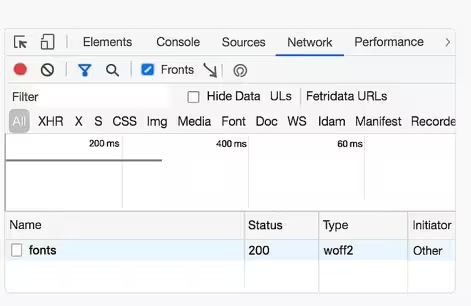
- Filter by Fonts.
- Reload the page.
- Copy the URL of the
.woff2or.wofffile.
Chrome DevTools → Network → Fonts → showing the font file URL.
2. Preload Fonts in WordPress via <link rel="preload"> (Simple Method)
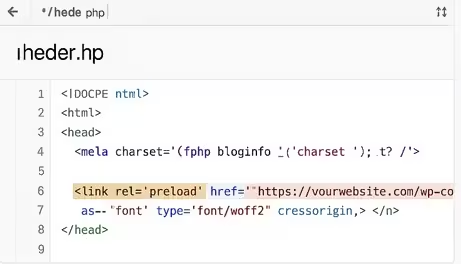
If your theme allows editing the header.php file, add the following inside the <head> tag:
<link rel="preload" href="https://yourwebsite.com/wp-content/uploads/fonts/Inter-Regular.woff2" as="font" type="font/woff2" crossorigin>
Important:
- Use the full absolute URL
- Keep
crossoriginif the font is loaded across origins - Recommended only if you are comfortable editing theme files
header.php editor showing the preload tag inside <head>
3. Recommended Method: Add Preload Fonts in WordPress via functions.php (Update-Safe)
Editing header.php is risky because updates can overwrite changes.
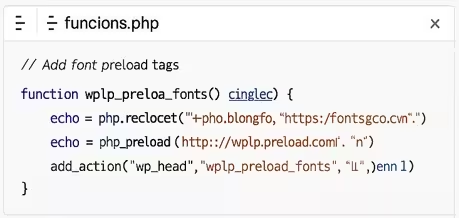
Instead, use the wp_head hook inside functions.php:
// Add font preload tags
function wplp_preload_fonts() {
    echo '<link rel="preconnect" href="https://fonts.gstatic.com" crossorigin>' . "\n";
    echo '<link rel="preload" href="https://yourwebsite.com/wp-content/uploads/fonts/Inter-Regular.woff2" as="font" type="font/woff2" crossorigin>' . "\n";
}
add_action( 'wp_head', 'wplp_preload_fonts', 1 );
Why this method is better:
✔ Survives theme updates
✔ Loads preload very early with priority 1
✔ Easy to manage multiple fonts
✔ Works with any theme or builder
functions.php editor showing the preload code.
4. Preloading Google Fonts (Optional)
If you are using Google Fonts (not self-hosted), use preconnect and optionally preload self-hosted woff2 versions:
function wplp_preload_google_fonts() {
    echo '<link rel="preconnect" href="https://fonts.googleapis.com">' . "\n";
    echo '<link rel="preconnect" href="https://fonts.gstatic.com" crossorigin>' . "\n";
}
add_action( 'wp_head','wplp_preload_google_fonts', 1 );
If you self-host Google Fonts, preload the .woff2 file the same way shown above.
5. How to Verify Preload is Working
A) Chrome DevTools
- Open DevTools → Network
- Reload the page
- Filter by Fonts
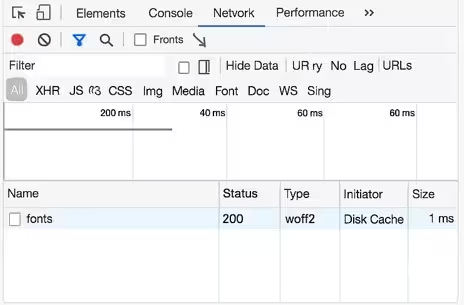
- Your font should show Initiator: link-preload
Network panel showing preload in the Initiator column.
B) PageSpeed Insights
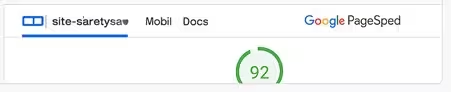
Run your URL → PageSpeed should show lower LCP and fewer “Reduce render-blocking resources” warnings.
PageSpeed Insights improvement after preloading.
6. Preload Best Practices
- Preload only critical fonts (usually the one used in the hero or body text).
- Don’t preload large font files that are not immediately visible.
- Always use
.woff2if available (smallest file size). - Combine preload with preconnect to reduce DNS and SSL handshake delays.
7. Common Mistakes to Avoid
❌ Preloading too many fonts
❌ Preloading fonts that are not used above the fold
❌ Wrong file URL → results in 404
❌ Missing crossorigin when loading from a different domain
❌ Adding preload in the wrong place (should be at top of <head>)
✔ Quick Copy-Paste Checklist
- Identify your
.woff2URL - Add
preconnect - Add preload tag (
as="font") - Add
crossorigin - Insert via
functions.php(recommended) - Test using DevTools + PageSpeed
FAQ
1. Should I preload all my fonts?
No. Only preload fonts used above the fold. Preloading too many fonts can slow down your site.
2. Is crossorigin required?
Yes, if the font loads from another domain (including CDN or Google Fonts).
3. Which font format should I preload?
Always prefer .woff2 — it is the fastest and most compressed.