
This post is going to guide its users on how to stick a sidebar without any plugin.
The main purpose behind doing this activity is to maintain speed while performing tasks such as the sticky sidebar in WordPress without plugin.
Do you really want to highlight user-friendly important contents when user scroll the WordPress Website?
A sticky sidebar helps you:
- Keep ads visible
- Improve affiliate clicks
- Show Table of Contents
- Increase newsletter signups
The best part? You don’t need any plugin.
This post will help you learn on how to –
- Make the entire sidebar sticky
- Make only a specific widget sticky
- Fix common Astra issues
- Avoid a layout break on mobile
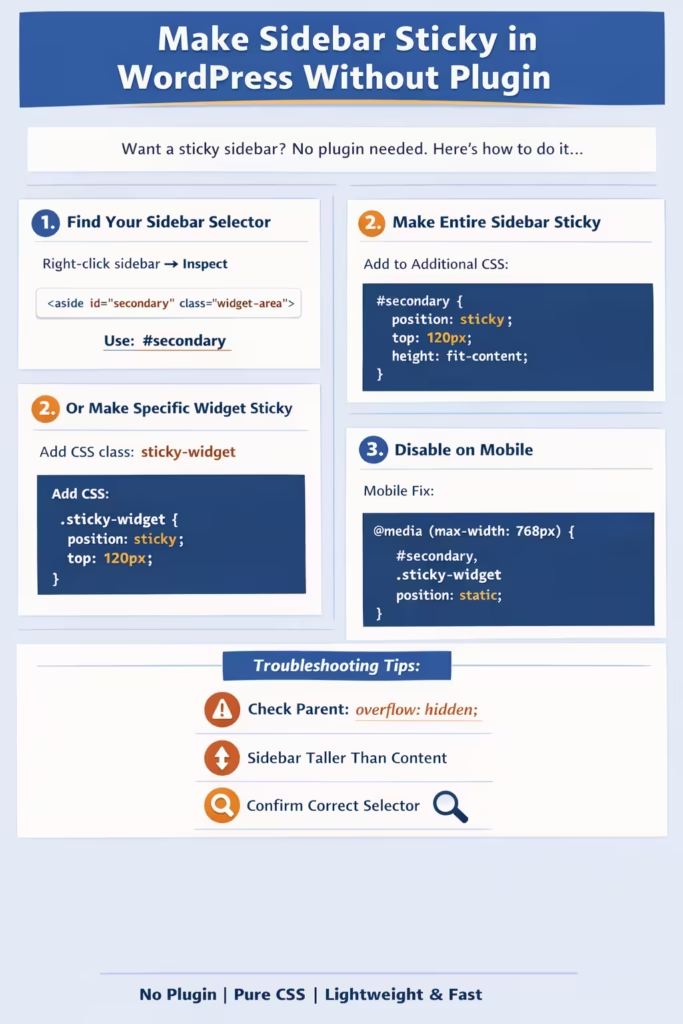
You may also like this: Sticky Header in wordpress Without Plugin
Step 1: Find Your Sidebar ID or Class to Make Sticky Sidebar in WordPress
Before adding CSS, you must find the correct selector.
How to Find It
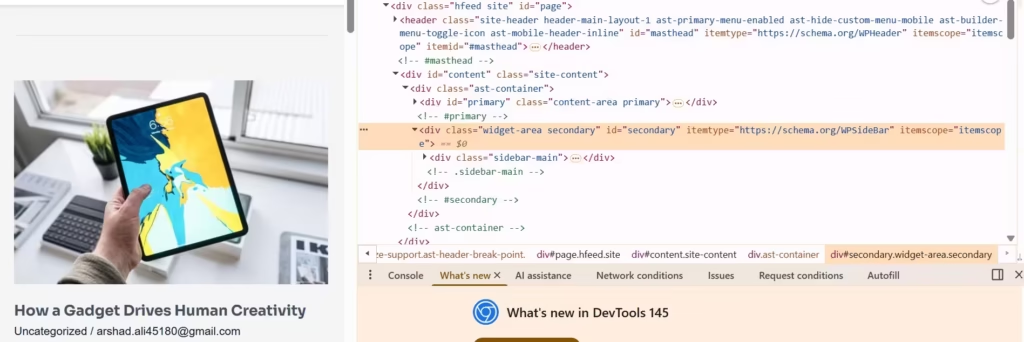
- Open your website.
- Right-click on the sidebar.
- Click Inspect.
- Look for something like:
<aside id="secondary" class="widget-area">
If you see:
id="secondary"
Your selector is:
#secondary
If you see:
class="sidebar"
Your selector becomes:
.sidebar
For the Astra theme, it is usually:
#secondary
Always confirm using Inspect.
Method 1: Make Entire Sidebar Sticky (Recommended)
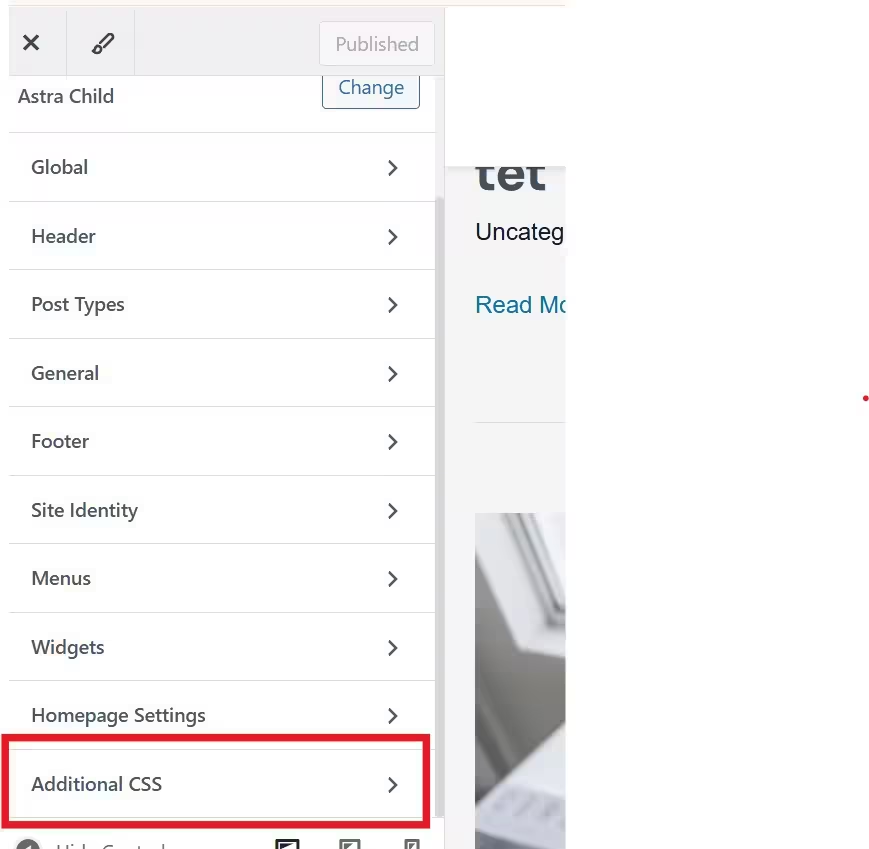
Go to:
Dashboard → Appearance → Customize → Additional CSS
Add:
#secondary {
  position: fixed;
  top: 120px;
  height: fit-content;
  rigth:0;
}
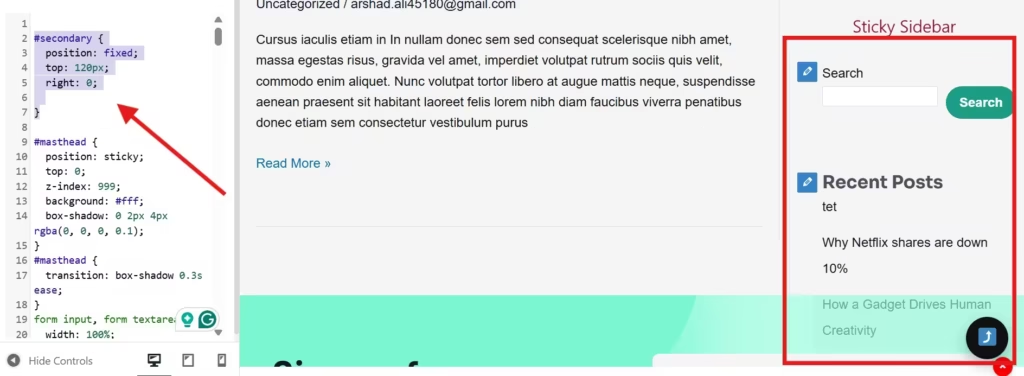
What This Does
position: sticky;activates sticky behaviortop: 120px;prevents header overlapheight: fit-content;fixes flex layout stretch
Astra Layout Fix (Important)
If sticky does not activate in Astra, add:
.ast-container {
  align-items: flex-start;
}
This prevents the sidebar from stretching vertically.
Method 2: Make Only a Specific Widget Sticky Sidebar in WordPress
Sometimes you don’t want the full sidebar sticky — just one widget.
Example use cases:
- Sticky TOC
- Sticky Ad
- Sticky CTA button
Step 1: Enable CSS Class Option
Go to:
Appearance → Widgets
Click the top-right Screen Options
Enable:
✔ CSS Classes
Step 2: Add Custom Class to Widget
Open the widget you want to be sticky.
In the CSS Class field, add:
sticky-widget
Save.
Step 3: Add CSS
Go to Additional CSS and add:
.sticky-widget {
  position: sticky;
  top: 120px;
}
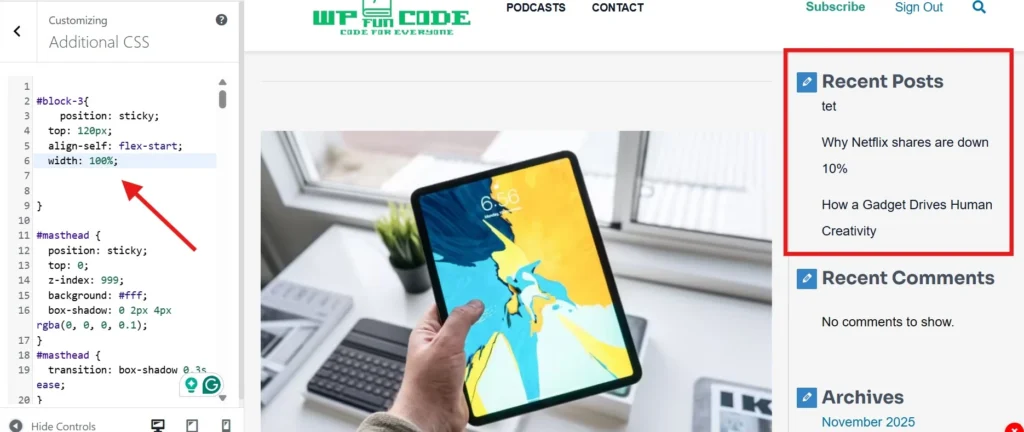
That’s it.
Now only that widget will stick while scrolling.
If Widget Sticky Doesn’t Work
Add:
.sticky-widget {
  position: sticky;
  top: 120px;
  align-self: flex-start;
}
And ensure the parent doesn’t have:
overflow: hidden;
Method 3: Fixed Sidebar (Fallback Option)
If sticky fails due to layout restrictions, use fixed positioning.
#secondary {
  position: fixed;
  top: 120px;
  right: 0;
}
Optional width adjustment:
#secondary {
  position: fixed;
  top: 120px;
  right: 0;
  width: 300px;
}
Use this only if the sticky method fails.
Fixed May:
- Overlap footer
- Break responsiveness
- Require manual width adjustment
Disable Sticky on Mobile
Sticky sidebars often break the mobile layout.
Add:
@media (max-width: 768px) {
  #secondary,
  .sticky-widget {
    position: static;
  }
}
Common Reasons Sticky Sidebar Is Not Working
1️⃣ Parent Container Has Overflow Hidden
Sticky won’t work if the parent has:
overflow: hidden;
Fix with:
.site-content,
.ast-container {
  overflow: visible !important;
}
2️⃣ Sidebar Taller Than Content
Sticky activates only if main content is taller.
3️⃣ Wrong Selector
Always confirm using Inspect.
Sticky Sidebar With Sticky Header
If you already have a sticky header:
Increase top spacing:
top: 140px;
Adjust based on header height.
Performance Impact
Using CSS sticky:
No plugin
No JavaScript
No extra queries
No performance impact
Clean and lightweight solution.
Testing Notes
First we test, then serve.
Testing Notes
Tested on: WordPress 6.6+, Astra Pro, PHP 7.4/8.0/8.2
Verified on: Chrome, Edge, Mobile & Desktop
Conclusion
You don’t need a plugin to create a sticky sidebar in WordPress. Through this guide, you can perform the following tasks easily.
- Stick the entire sidebar
- Stick specific widget
- Control mobile behavior
- Keep the layout clean
Always try position: sticky first.
Use position: fixed only as a fallback.
FAQ
Why is my sticky sidebar in WordPress not working?
The sticky sidebar usually fails because:
a.The parent container has overflow: hidden;
b.The sidebar is inside a flex container with align-items: stretch
c.The sidebar height is larger than the main content
d.The wrong CSS selector is used
Use the browser Inspect tool to confirm the correct sidebar ID or class
2. What is the difference between position: sticky and position: fixed?
position: sticky
Stays inside its parent container
Stops before reaching the footer
Better for blog layouts
position: fixed
Sticks to the screen permanently
Ignores container boundaries
Can overlap the footer or break the layout
For most WordPress sites, position: sticky is recommended.
Can I make only one widget sticky instead of the entire sidebar?
Yes.
Add a custom CSS class (for example: sticky-widget) to a specific widget and use:
.sticky-widget { position: sticky; top: 120px; }
This keeps only that widget sticky while the rest of the sidebar scrolls normally.
Does a sticky sidebar affect SEO?
No.
Sticky behavior is purely CSS-based and does not:
Block indexing
Affect crawling
Change ranking signals
In fact, better engagement and higher visibility of internal links may improve user interaction metrics.